
Camera setup guide: help Data2Dao see every move
Data2Dao recognizes your moves on the device with the iPhone front camera. Where to place the phone, how far to stand, what each move needs in frame, and what to do when you see hints like “Step back a little” or “It's too dark here”.
Short answer
Stand your phone upright, front camera facing you, somewhere stable at about waist height. Step back until the camera sees your whole body—at least everything above the knees (turn side-on for push-ups). Most people fit in the frame at 1.5–2.5 m (5–8 ft).
During a battle, the small camera window in the corner shows “Good Position” when you're ready. If you see “Step back a little”, “Step a little closer” or “Move to the center”, take one step as asked. Camera frames are processed on the phone and never saved or uploaded.
What you need
- An iPhone or iPad running iOS 18.0 or later. Recognition uses the front camera, and the app runs in portrait only.
- Somewhere to stand the phone upright: a phone stand, a shelf, a stack of books on a desk or a chair.
- Enough floor space to spread your arms and squat, with about 2–3 m (7–10 ft) clear in front of the phone.
- No Apple Watch, fitness band or other equipment.
Set up in four steps
- Stand it upright. Screen facing you, front camera at the top. Make sure it won't get knocked over while you move.
- Put it at about waist height. A desk, chair seat or middle shelf works well. Aim the lens roughly at the middle of your body rather than looking up from the floor.
- Step back until you fit. Get your whole body in view, or at least everything above the knees. Squats and similar moves still count when your lower legs are out of frame; heel raises and single-leg balance need your feet, so stand a little farther back.
- Watch the camera window. During a battle, the small window in the corner shows the front camera. When it says “Good Position”, you're ready.
What each move needs in frame
Different moves watch different joints. For left–right pairs, one in every four required joints may briefly drop out of view, so turning slightly is fine.
| Move | Needs in frame | Tip |
|---|---|---|
| Side Stretch | Head, shoulders, elbows, wrists, hips | Keep your raised hand inside the top of the frame |
| Standing Jump Clap | Shoulders, elbows, wrists, hips | Leave room at the sides for open arms |
| Squat | Shoulders, hips, knees | Keep your knees in frame at the bottom of the squat |
| High Knees | Shoulders, hips | Still counts if your knees leave the frame |
| Push-Up | Shoulders, elbows, wrists, hips—side-on | Put the phone low; in battle you get 20 seconds to reposition and your combo is kept |
| Shoulder Circles, Knee-Bent Arm Circles | Arms | Works in small spaces and close to the camera |
| Arm Swings, Up-and-Down, Wall Angel | Upper body | Wall Angel needs your back against a wall |
| Heel Raises, Single-Leg Balance | Full body, including feet | Stand farther back |
What the on-screen hints mean
A hint appears only after about 1.2 seconds of off framing and clears about 0.8 seconds after you fix it, so you don't need to stop and stare at the screen.
| Hint | When it appears | What to do |
|---|---|---|
| Good Position | Everything this move needs is in view | Start moving |
| Step back a little | You're too close; raised or open arms leave the frame | Take half a step to a full step back |
| Step a little closer | You're too far; your body is small in the frame (torso under roughly a tenth of its height) | Take a step forward |
| Move to the center | Your body has drifted toward the left or right edge | Shift sideways to the middle |
| Show your shoulders and hips / Key parts out of frame | The joints this move needs aren't visible | Adjust using the table above—turn side-on for push-ups, get your knees in for squats |
| It's too dark here | Very few joints can be found (fewer than four). The app doesn't measure brightness; the usual causes are dim light, a window behind you or clothes that blend into the background | Turn on a light, don't stand with your back to a window, or find a spot with more contrast |
| Can't see you | No person is found in the frame | Step back in front of the camera |
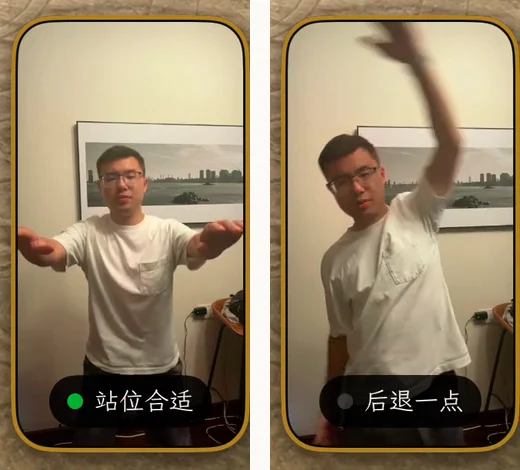
If you leave the frame mid-battle
- The battle doesn't pause—you'll just see a hint. Step back into view and carry on.
- If no move is recognized for a while, you'll get a reminder after 15 seconds and then every 20 seconds; the second one tells you that you can skip the move.
- Can't do a move? Hold an OK sign to the camera for 1.2 seconds to skip it.
- In set-based practice (Choose practice), active time pauses while you're out of frame and resumes when you come back. Short on space? Pick “Close-range move” in the pause menu to switch to Arm Swings.
- If the camera can't start, the battle pauses and offers “Retry camera”.
Where do the camera frames go?
Pose recognition runs on the phone using Apple's Vision framework. Before asking for camera access, the app tells you: recognized on this phone only; nothing is saved or uploaded, and you can turn the camera off anytime.
- The only video the app keeps comes from Record Battle Highlights. You're asked at your first battle whether to turn it on. If you do, a roughly 7-second clip is created on the device after a win, kept only on that device for 7 days by default, and saved to Photos only if you choose. You can turn it off in Settings at any time.
- The workout feedback form has an option, off by default, that attaches joint coordinates and confidence only—no photos or video of you.
Other features such as accounts, subscriptions and voice transcription use network services; see the Privacy Policy.
A real screen recording
Where the 1.5–2.5 m figure comes from
The app doesn't judge distance in meters. It looks at how much of the frame your body fills: when your torso is under roughly 10% of the frame height and your shoulders are narrow, it asks you to step closer; when you're too close, raised hands and open arms are the first things to leave the frame.
Based on the field of view of an iPhone front camera held upright, an adult standing about 1.5–2.5 m away satisfies both most easily. Your height, room and device will shift this, so go by the on-screen hints.
Set up your phone and try a 3-minute battle
It's free to download, and the introduction includes a camera trial.